Beginner’s Guide to Creating Cinematics with Source Filmmaker
Creating cinematic animations used to require expensive tools and years of training, but Source Filmmaker (SFM) has made it accessible to beginners. Whether you want to create short films, game-inspired scenes, or stylized animations, SFM offers a powerful starting point. This guide walks you through the essentials from setup to final render so you can start producing compelling cinematics.
What Is a Source Filmmaker?
Source Filmmaker is a free animation and video creation tool developed by Valve, designed to help users create dynamic scenes. It uses the Source game engine, allowing you to build projects using assets from games like Team Fortress 2 and Half-Life. With real-time rendering and a built-in timeline editor, SFM lets you see your work come to life instantly, much like the seamless experience offered through the Parimatch download.
There are a few things to note to get started:
Install and Launch SFM
Download Source Filmmaker from Steam and launch it like any other game. When it opens, you’ll be prompted to create or open a session. Choose “New Session” to begin.
Understand the Interface
The SFM interface may feel overwhelming at first, but it consists of a few key areas:
- Viewport: Where you see your scene.
- Animation Set Editor: Controls models and elements in your scene.
- Motion Editor: Handles movement and animation.
- Timeline: Organizes shots, audio, and animation sequences.
Spend a few minutes exploring these panels, and you’ll use them constantly.
Creating Your First Scene
Load a Map: A “map” is your environment. Click File > Load Map, then choose a map. This becomes the stage for your cinematic.
Add Models: Models are characters or props. Right-click in the Animation Set Editor and select Create Animation Set for new model. Browse and add a character or object.
Position Your Models: Use the transform tools (move, rotate, scale) to place your models in the scene. Think about composition of where your subject sits in the frame matters.
Basic Animation Techniques
Using Keyframes
Animation in SFM is based on keyframes. These mark positions at specific points in time:
- Move the playhead on the timeline.
- Adjust your model’s position or pose.
- SFM automatically creates a keyframe.
By changing positions at different times, you create motion.
Posing Characters
Switch to the Motion Editor to pose characters:
- Select bones (arms, legs, head).
- Rotate and position them for natural movement.
Start simple—standing, walking, or looking around.
Facial Animation
For dialogue or emotion:
- Use sliders for facial expressions.
- Sync mouth movements to audio if needed.
Camera Work and Cinematic Techniques
Create a Camera
Go to Create Camera and switch your viewport to that camera. This is what your audience will see.
Use Cinematic Angles
Experiment with:
- Close-ups: For emotion.
- Wide shots: For environment and scale.
- Low angles: To make characters look powerful.
- High angles: To make them appear vulnerable.
Camera Movement
Animate the camera just like any model:
- Add keyframes to move it smoothly.
- Use slow pans and zooms for a cinematic feel.
Lighting Your Scene
Lighting can make or break your cinematic.
Add Lights
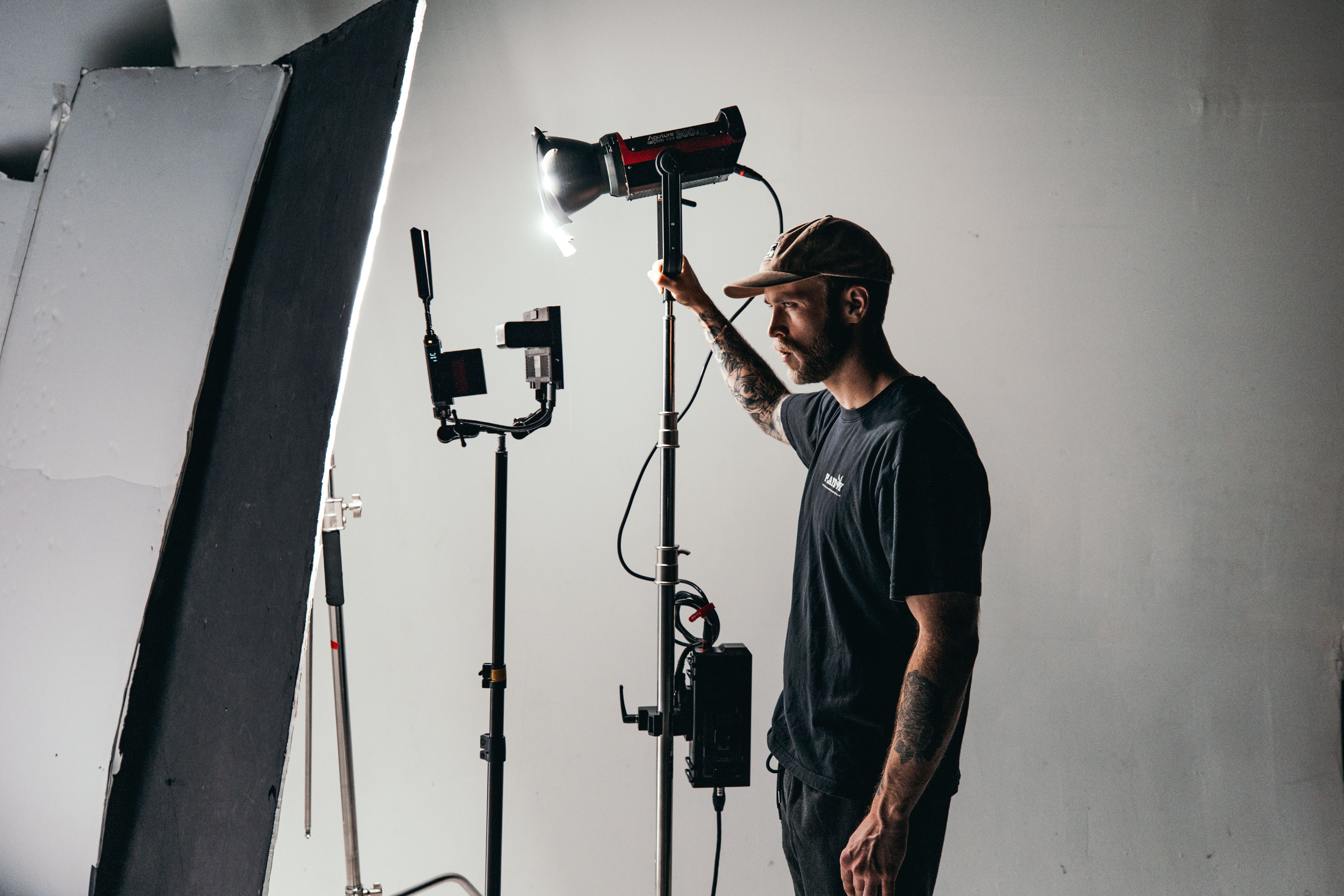
Right-click and select Create Animation Set for New Light. Position lights strategically:
- Key Light: Main light source.
- Fill Light: Softens shadows.
- Back Light: Adds depth.
Adjust Colors and Intensity
Warm tones create a cozy feel, while cool tones suggest tension or night scenes. Play with brightness and color until it matches your mood.
Use Shadows
Enable shadows for realism, but balance performance; too many shadowed lights can slow things down.
Adding Sound and Effects
Import Audio: Drag audio files into the timeline. This can include dialogue, music, or sound effects.
Sync Animation: Match character movements and camera cuts to the audio for a more immersive experience.
Effects and Particles: Add effects like smoke, fire, or explosions using particle systems. These enhance realism and visual interest.
Rendering Your Cinematic
Choose Export Settings
Go to File > Export > Movie. Select your resolution and format. Higher settings produce better quality but take longer.
Image Sequence vs Video
- Image Sequence: Best quality, allows editing later.
- Video File: Faster and simpler.
Post-Processing
Consider editing your final output in software like Adobe Premiere Pro or DaVinci Resolve for color grading, cuts, and effects.
Tips for Beginners
- Start Small: Create short clips instead of full movies.
- Use References: Study films or animations for inspiration.
- Download Assets: Expand your library with community-made models and maps.
- Practice Regularly: Improvement comes with experimentation.
- Join Communities: Platforms like YouTube and forums offer tutorials and feedback.
Common Mistakes to Avoid
- Overcomplicating Scenes: Too many elements can clutter your project.
- Ignoring Lighting: Poor lighting ruins otherwise good animation.
- Stiff Movements: Use smooth transitions and natural poses.
- Skipping Planning: Even a simple storyboard helps.
Conclusion
Source Filmmaker is a powerful tool that bridges the gap between gaming and filmmaking. While it may seem complex at first, mastering its basics opens the door to endless creative possibilities. Focus on storytelling, experiment with techniques, and refine your skills over time. With patience and creativity, you can turn simple scenes into cinematic experiences that captivate your audience.
Disclaimer
This guide is intended for educational and informational purposes only. Source Filmmaker and all related assets are the property of Valve Corporation. Always ensure you have the right to use any models, maps, audio, or third-party content in your projects, and respect copyright and licensing agreements when creating or sharing your cinematics.